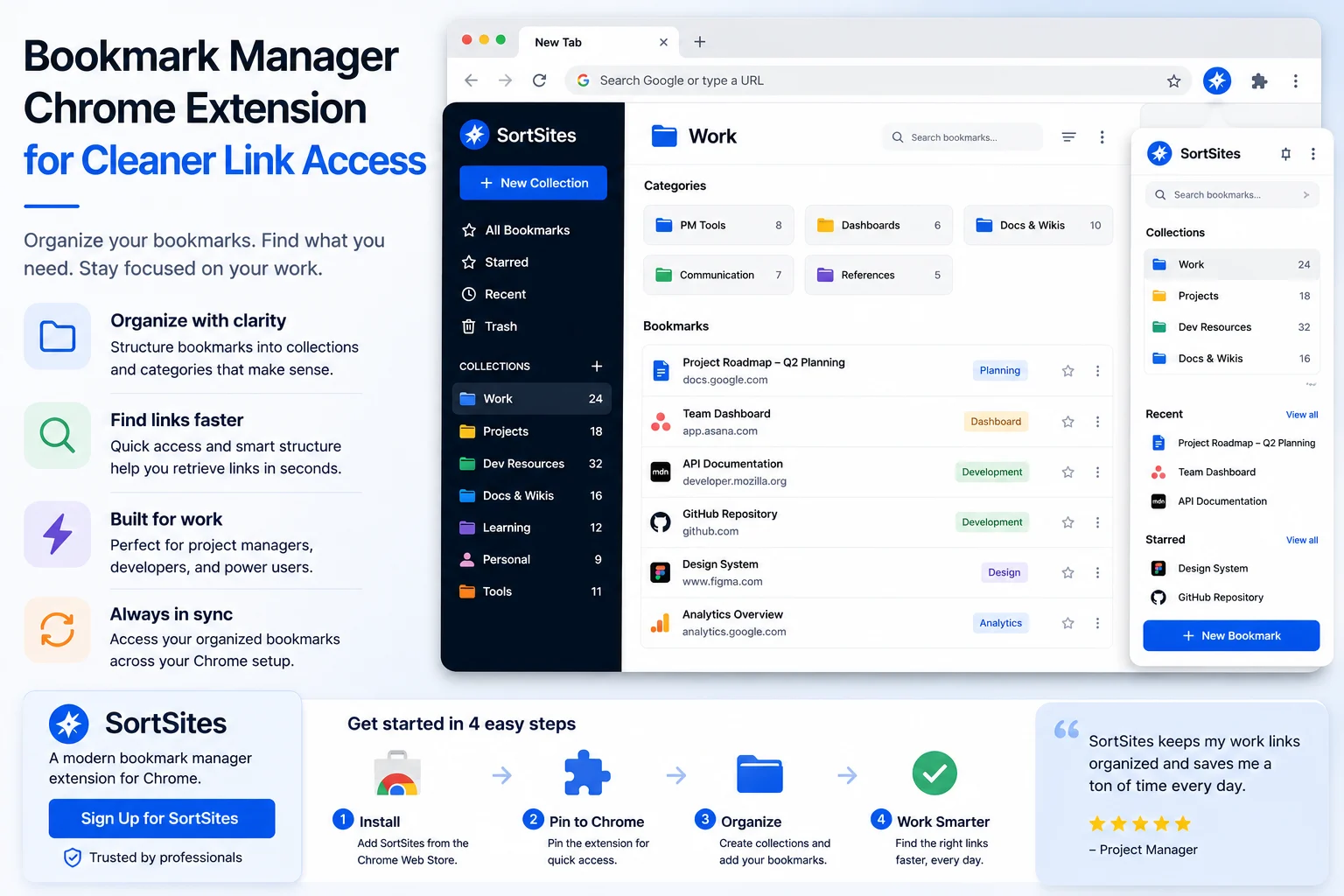
The Sortsites bookmark manager extension for Chrome gives you a fast, organized way to store and retrieve bookmarks without losing track of important pages. If you need to manage hundreds of project links, client resources, or development references, this guide walks you through downloading the chrome bookmark manager, installing it in your browser, and accessing your organized bookmark system.
Key takeaways
- Download the bookmark manager chrome extension directly from the Chrome Web Store in seconds
- Access your organized bookmarks through a single browser icon after installation
- Start organizing immediately with no additional software or account setup required
- Works exclusively in Chrome browser for project managers and developers who need quick bookmark retrieval
Why You Need a Dedicated Bookmark Manager Extension
Chrome’s built-in bookmark system works for casual browsing, but it falls apart when you manage dozens of client projects, development documentation, or workflow resources. You waste time searching through nested folders or scrolling past irrelevant links. A bookmark manager app designed for organization gives you faster retrieval, better categorization, and a cleaner workspace.
The Sortsites bookmarks app solves this by letting you tag, search, and access bookmarks without digging through folder hierarchies. Project managers can separate client work from internal resources. Web developers can keep documentation, testing tools, and repositories instantly available.
How to Download and Install the Chrome Bookmark Manager
1. Visit the Chrome Web Store
Open Chrome and navigate to the Chrome Web Store. Search for Sortsites or browse the productivity extensions category.
2. Download the bookmark manager extension
Click the Add to Chrome button on the Sortsites extension page. Chrome will download and prepare the extension automatically.
3. Confirm installation permissions
Review the permissions request and click Add Extension to complete the installation. The extension icon appears in your Chrome toolbar immediately.
4. Access your bookmark organizer
Click the Sortsites icon in your toolbar to open the bookmark manager interface. Your existing Chrome bookmarks are ready to organize.
The entire process takes less than two minutes. You do not need to create an account or configure settings before you start organizing.
What Happens After You Install the Extension
Once you install the google chrome bookmark manager extension, the toolbar icon becomes your main access point. Click it to view, search, and organize bookmarks without opening a new tab or interrupting your workflow. The extension runs in the background and stays available across all your Chrome windows.
One-click access
Open the bookmark manager from your toolbar without switching contexts or losing focus on your current work.
Instant search
Find any bookmark by typing keywords instead of remembering which folder you used months ago.
Tag-based organization
Group bookmarks by project, client, or topic without rigid folder structures that break when your workflow changes.
Chrome-native performance
The extension integrates directly with Chrome, so there is no lag when opening or searching your bookmark library.
When to Use This Extension vs. Chrome’s Default Bookmarks
| Sortsites bookmark app | Project managers and developers managing 50+ bookmarks across multiple workflows | Requires Chrome browser only, not available on other browsers |
| Chrome default bookmarks | Casual browsing with fewer than 20 saved pages | No advanced search, tagging, or retrieval features for large collections |
| Cloud bookmark services | Users who switch between multiple browsers or devices frequently | Requires account sync and may have slower access times |
Choose the Sortsites extension if you work primarily in Chrome and need fast, organized access to dozens or hundreds of bookmarks. Skip it if you rarely save bookmarks or if you need cross-browser sync as a primary feature.
This extension is one part of the Sortsites bookmark organization system. For a complete overview of features, tagging strategies, and workflow automation, visit the main Chrome bookmark manager page.
Common Installation Questions
FAQs
Does the bookmark manager extension work on mobile Chrome?
No, the extension is designed for desktop Chrome only. Mobile Chrome does not support extensions in the same way.
Will installing the extension delete my existing Chrome bookmarks?
No, the extension accesses your existing bookmarks without deleting or modifying them. You can uninstall the extension at any time and your bookmarks remain intact.
Do I need a Sortsites account to use the bookmark manager chrome extension?
You can start organizing immediately after installation. An account is only required if you want to sync bookmarks across devices or access premium features.
Can I access the bookmark organizer offline?
Yes, once installed, the extension works offline for viewing and organizing bookmarks already stored in Chrome.
Start organizing your Chrome bookmarks today
Download the Sortsites bookmark manager extension and get instant access to faster bookmark retrieval and cleaner workflows.